An Ode to Ubiquiti
@dalexeenko|August 29, 2024 (2y ago)212 views
Tchau, Apple AirPort Extreme
When we moved into our current home, I faced a dilemma with our home internet setup. My trusty Apple AirPort Extreme router, which had served well in our smaller San Francisco apartment, couldn't provide adequate coverage for a large mid-century modern house. The house lacked ethernet wiring, ruling out a traditional setup with a patch panel and switch. I looked into all kinds of solutions, from high-end Wi-Fi routers like the ASUS RT-AX92U AX6100 and TP-Link's Archer AX6000, to MoCA, to mesh systems like Amazon's Eero, Google's Nest Wifi Pro, and Netgear's Orbi, but none seemed ideal.
One day, while settling into our new home, I noticed something intriguing: every room had landline phone sockets (RJ14). Curious, I peeked behind these unused wall plates and discovered each one housed two Cat 5e cables.
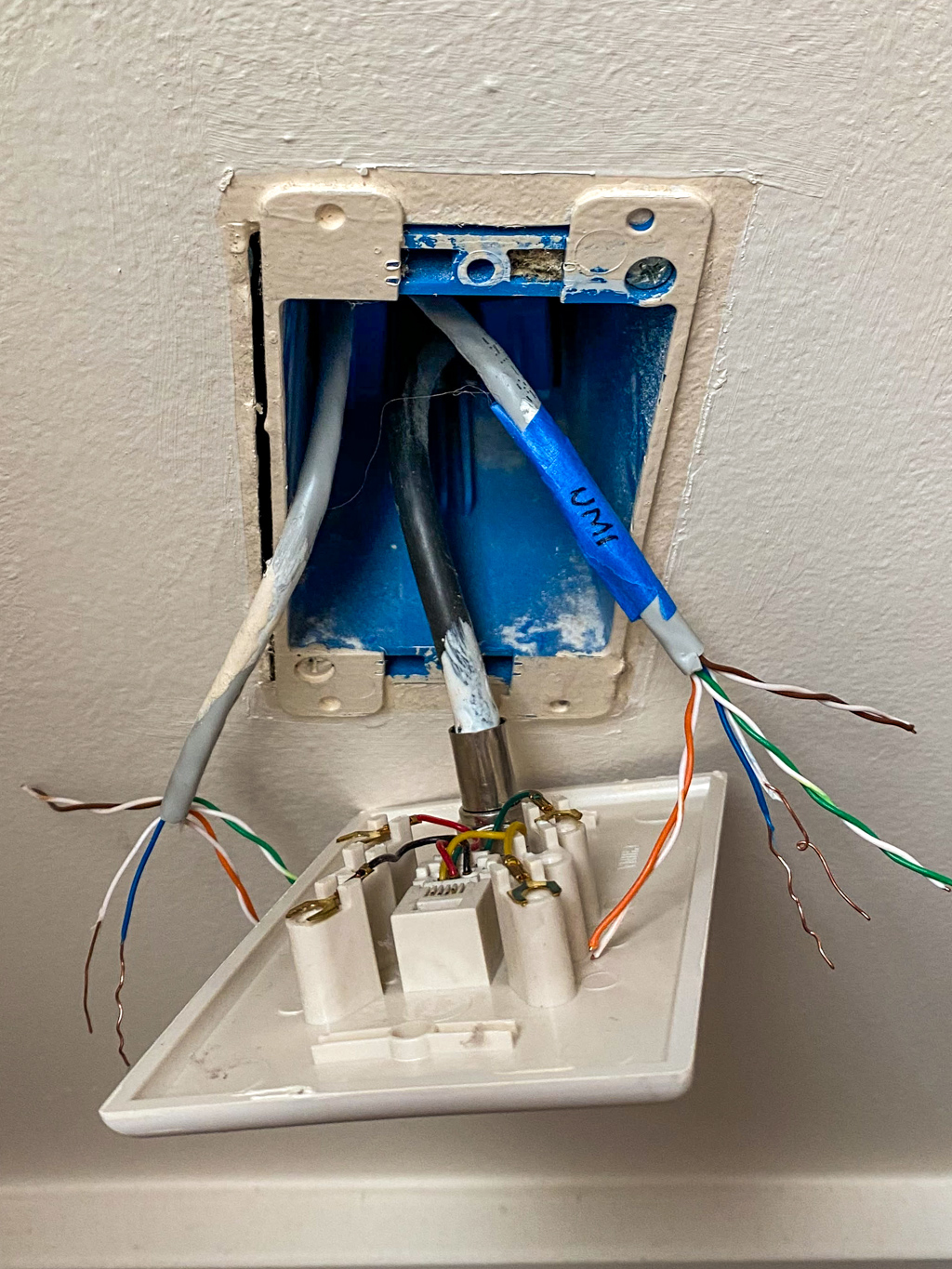 RJ14 phone jack with Cat 5e cables behind it
Bingo! The house had already been wired with Cat 5e cables capable of supporting Gigabit speeds. The only problem? The wiring used a multi-drop topology (each jack connected to its neighbors) instead of a star topology (each jack connected to a central point). That meant no patch panel, and I needed to determine which wall plates were interconnected.
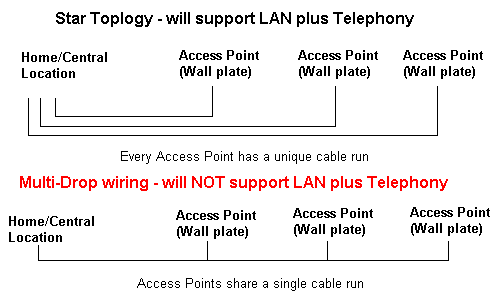 Multi-drop vs. star topology
To map out the connections, I came up with a simple algorithm:
- Short circuit two ethernet wires together in one wall plate.
- Measure the resistance of same-colored ethernet wires behind other wall plates.
- Once I found a pair with zero resistance, I knew I'd found the connected wall plate. Onto the next one!
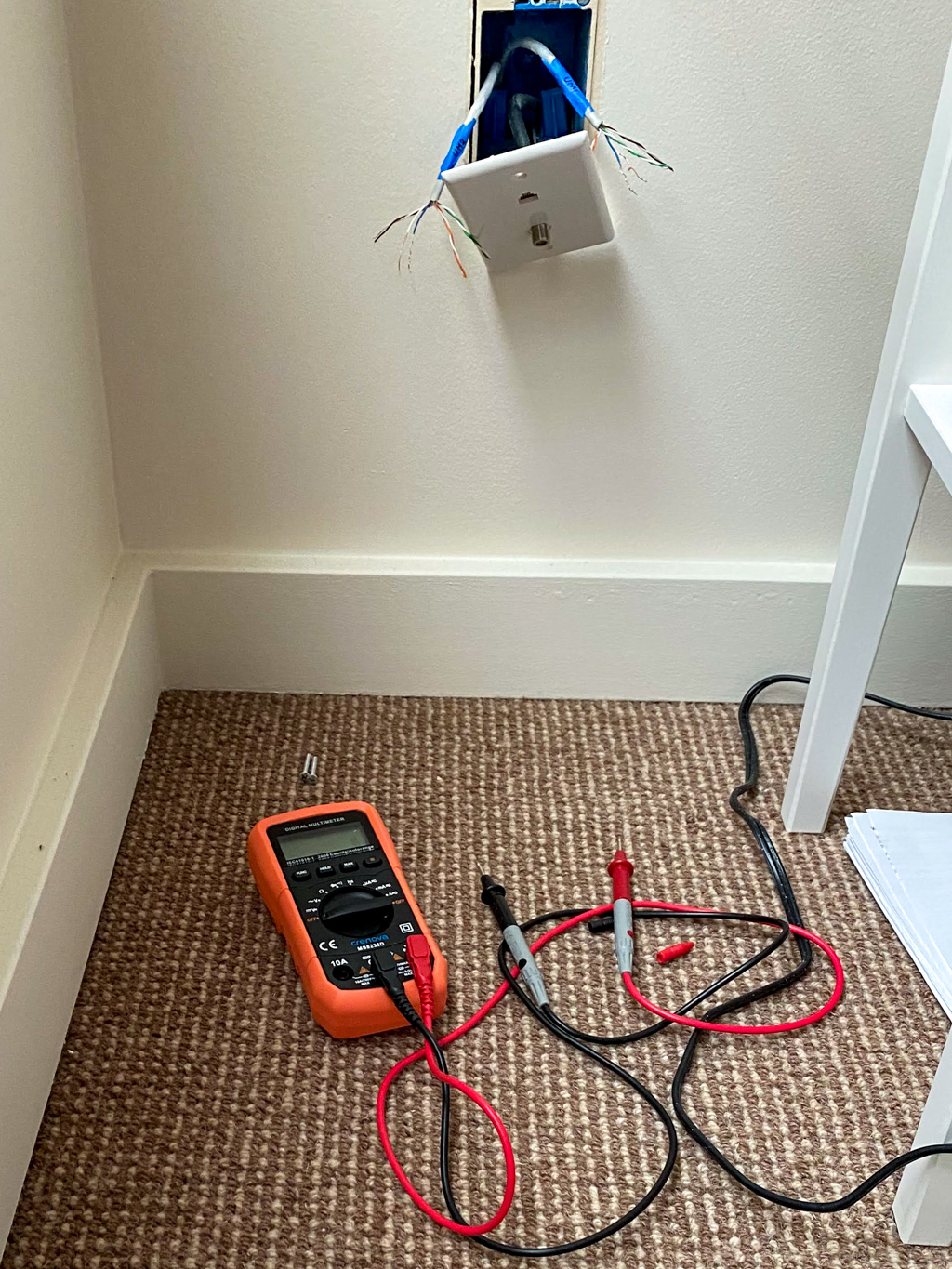 Testing wall plate connections with a multimeter
After mapping the connections, I went on to properly terminate everything as RJ45 Type B. This is an example of a map I created for one of the floors:
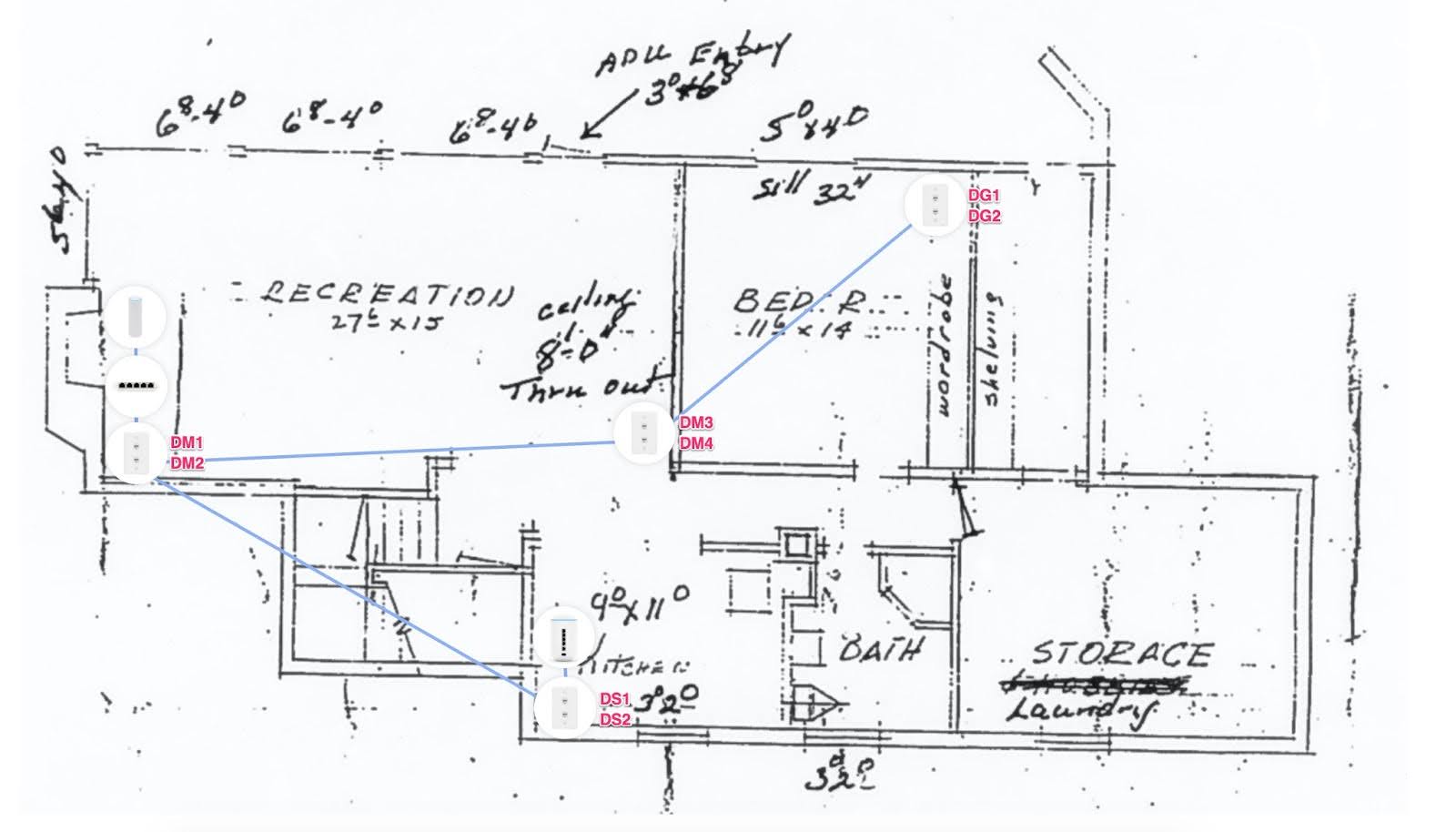 Network map for one of the floors
Oi, Ubiquiti
With the house now hardwired, I could invest in proper networking equipment. At the time a few of us at Stripe caught the Ubiquiti bug, so naturally that's what I decided to go with (fair warning: it's a slippery slope that can lead to thousands of dollars in equipment, but it's incredibly fun and rewarding).
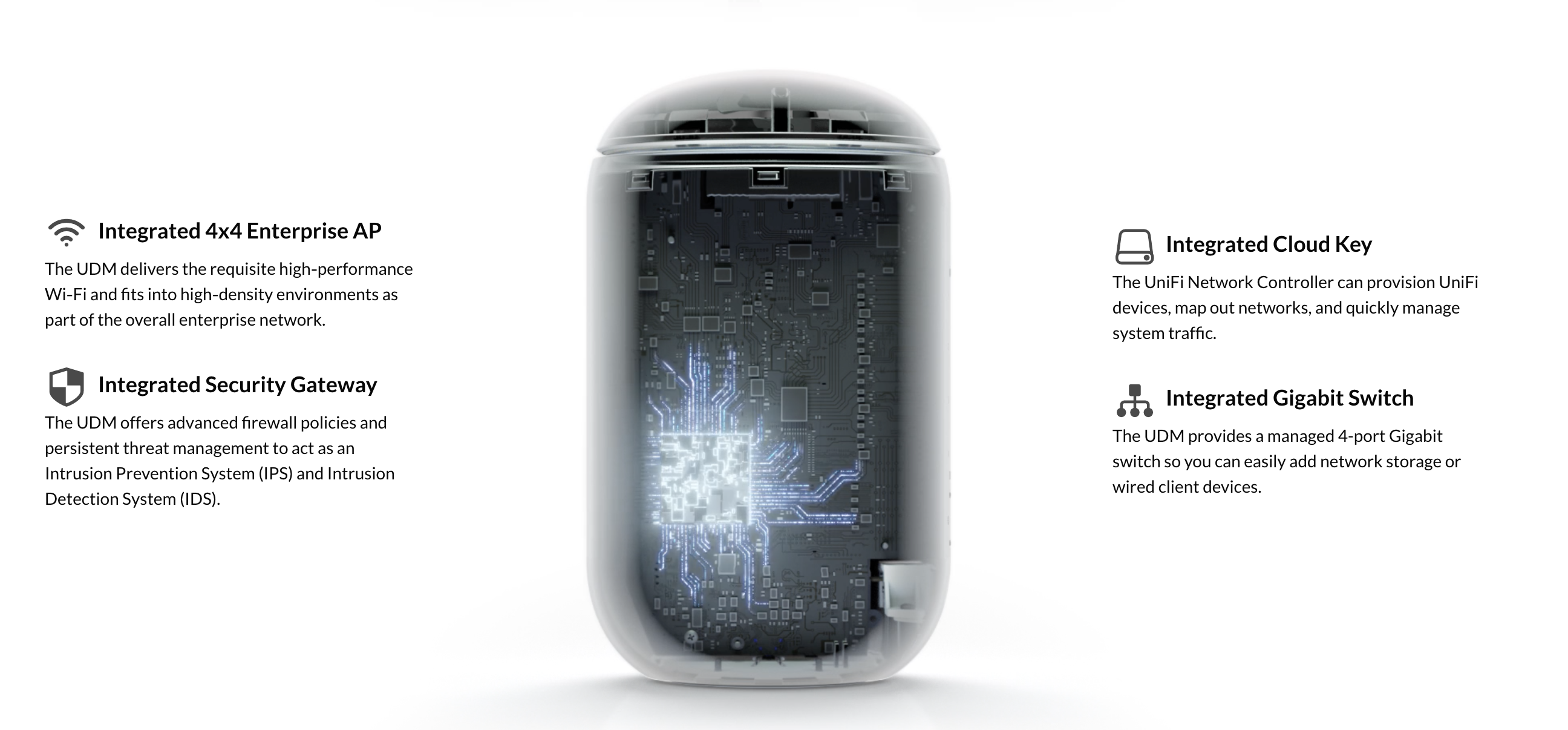 Unifi Dream Machine
Now I got busy with planning out the network. I drew several network diagrams, fiddled with placement of access points to model the dB signal loss, tinkered with Wi-Fi channel utilization, and even went down the rabbit hole of reading about RF theory and modulation.
Ubiquiti’s Unifi ecosystem is vast and there are numerous network configurations one can come up with. Eventually, I landed on a setup consisting of a Unifi Dream Machine, Flex Mini network switches and U6 Mesh access points (with wired backhaul). There are lots of fantastic access point options to choose from, so take your time and explore.
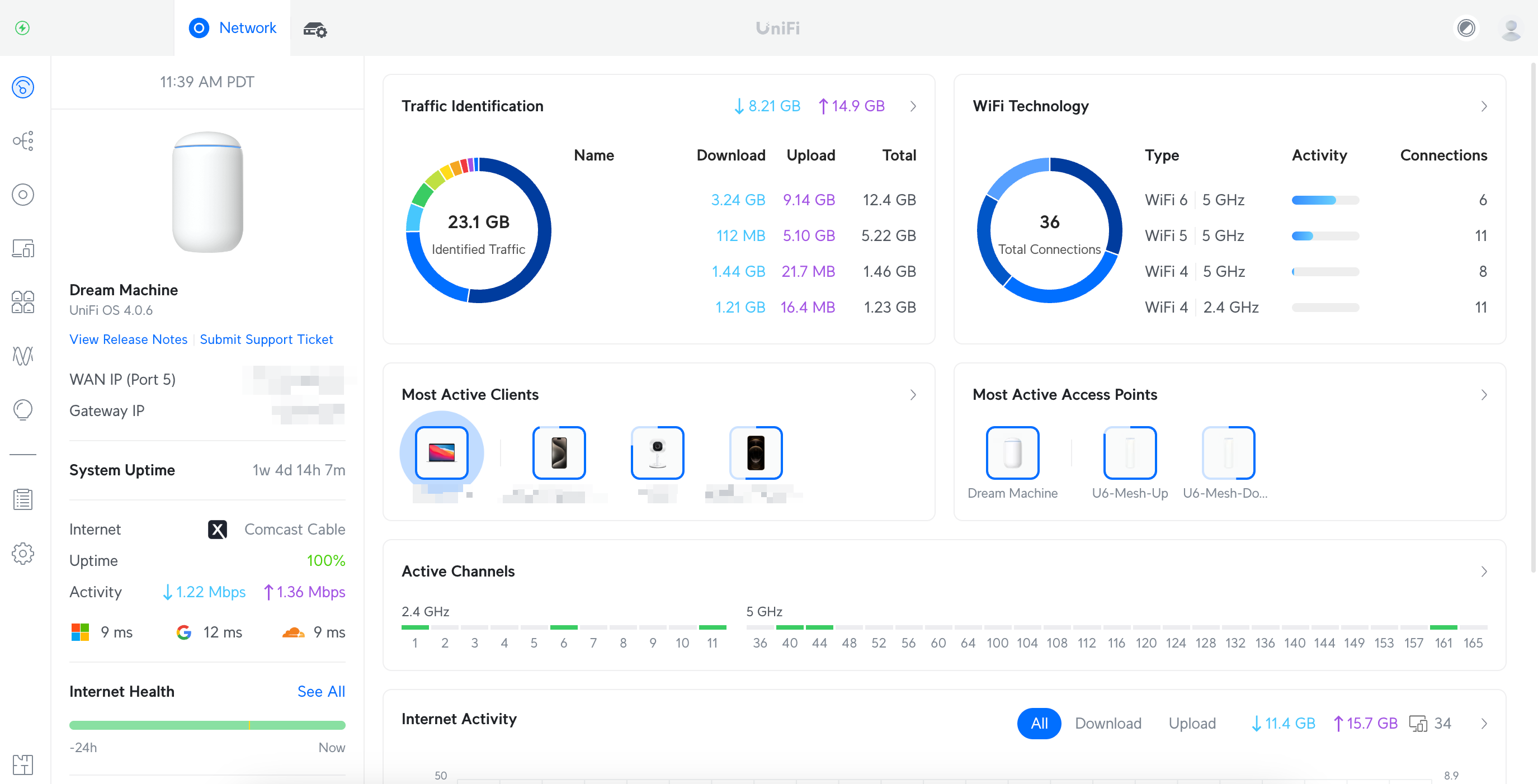 Unifi dashboard
The Ubiquiti Advantage
Switching to Ubiquiti opened up a world of possibilities:
- Easily setting up network-wide DNS (Cloudflare's 1.1.1.1 was a no-brainer).
- Implementing micro-segmentation for IoT devices. I prefer to have my speakers, lightbulbs, and smoke detectors outside of my main network security perimeter. So I created a separate LAN and Wi-Fi network for all of our devices that aren't laptops or phones.
- The Unifi dashboard is like attaching a kernel debugger to your network. The level of visibility and control it provides is unparalleled in consumer networking. It reminds me of Ethereal days but on a larger network scale.
Getting fast internet from your ISP is one thing. Getting that fast speed wirelessly to your client devices requires a bit more work, but turns out it's not hard:
Connecting to host 192.168.1.53, port 5201
[ 11] local 192.168.1.112 port 54826 connected to 192.168.1.53 port 5201
[ ID] Interval           Transfer     Bitrate
[ 11]   0.00-1.00   sec  68.8 MBytes   575 Mbits/sec
[ 11]   1.00-2.00   sec  72.5 MBytes   609 Mbits/sec
[ 11]   2.00-3.00   sec  75.6 MBytes   634 Mbits/sec
[ 11]   3.00-4.00   sec  76.2 MBytes   639 Mbits/sec
[ 11]   4.00-5.00   sec  74.1 MBytes   623 Mbits/sec
[ 11]   5.00-6.00   sec  73.0 MBytes   611 Mbits/sec
[ 11]   6.00-7.00   sec  75.5 MBytes   634 Mbits/sec
[ 11]   7.00-8.00   sec  77.0 MBytes   646 Mbits/sec
[ 11]   8.00-9.00   sec  75.8 MBytes   636 Mbits/sec
[ 11]   9.00-10.00  sec  75.3 MBytes   630 Mbits/sec
- - - - - - - - - - - - - - - - - -
[ ID] Interval           Transfer     Bitrate
[ 11]   0.00-10.00  sec   744 MBytes   624 Mbits/sec                  sender
[ 11]   0.00-10.01  sec   743 MBytes   623 Mbits/sec                  receiver

iperf Done.
[Process completed]
Final Thoughts
Those flashy numbers on router boxes at Best Buy? They're theoretical maximums. Real-world performance gets eaten by overhead, interference and the laws of physics — the further you are from an access point, the worse it gets. MIMO helps, but drops off with distance. Higher frequency bands are faster but shorter range. None of this is surprising, but it matters when you're placing access points.
624 Mbps over Wi-Fi, consistently, across the house. Not bad for a bunch of old phone cables.